
FIBERQ CAD / AUTOCAD ADD-IN / MIT LICENCE
Draw FTTH and GPON schematics in AutoCAD
Cables, closures, housings and splitters drawn fibre by fibre, with the bill of materials and the optical budget generated straight out of the drawing.
| VERSION | 1.0.0, released 25 August 2026 |
| DOWNLOAD | ZIP, 1.35 MB · 186 downloads |
| LICENCE | MIT. Written entirely in AutoLISP, source ships with the add-in |
| REQUIRES | AutoCAD 2019 or newer, Windows 64-bit. Map 3D and Civil 3D included |
| LANGUAGES | English and Serbian, switched with one command |
| SHA-256 | c6091376e4f9ebe24ed1f1bd0ee6023f82a799975336dd3c96cd02cde371f7ce |

01
AVAILABILITY
Where to get it
FiberQ CAD has been submitted to the Autodesk App Store and is waiting in the review queue. Reviews there currently take months, so the add-in is available here in the meantime: the same files, straight from the author.
When it is approved, this page will link to the store as well.
02
CAPABILITIES
What it does
Cables
Drawn fibre by fibre, in the colour code you work in: IEC, TIA-598 or your own standard.
Housings
From a catalogue you can extend: ODF, patch panel, FDH, MDU and FAT, with the right port count and mounting.
Closures and splitters
Splices, through fibres, cuts, joins and slack loops. The drawing keeps track of what is connected to what.
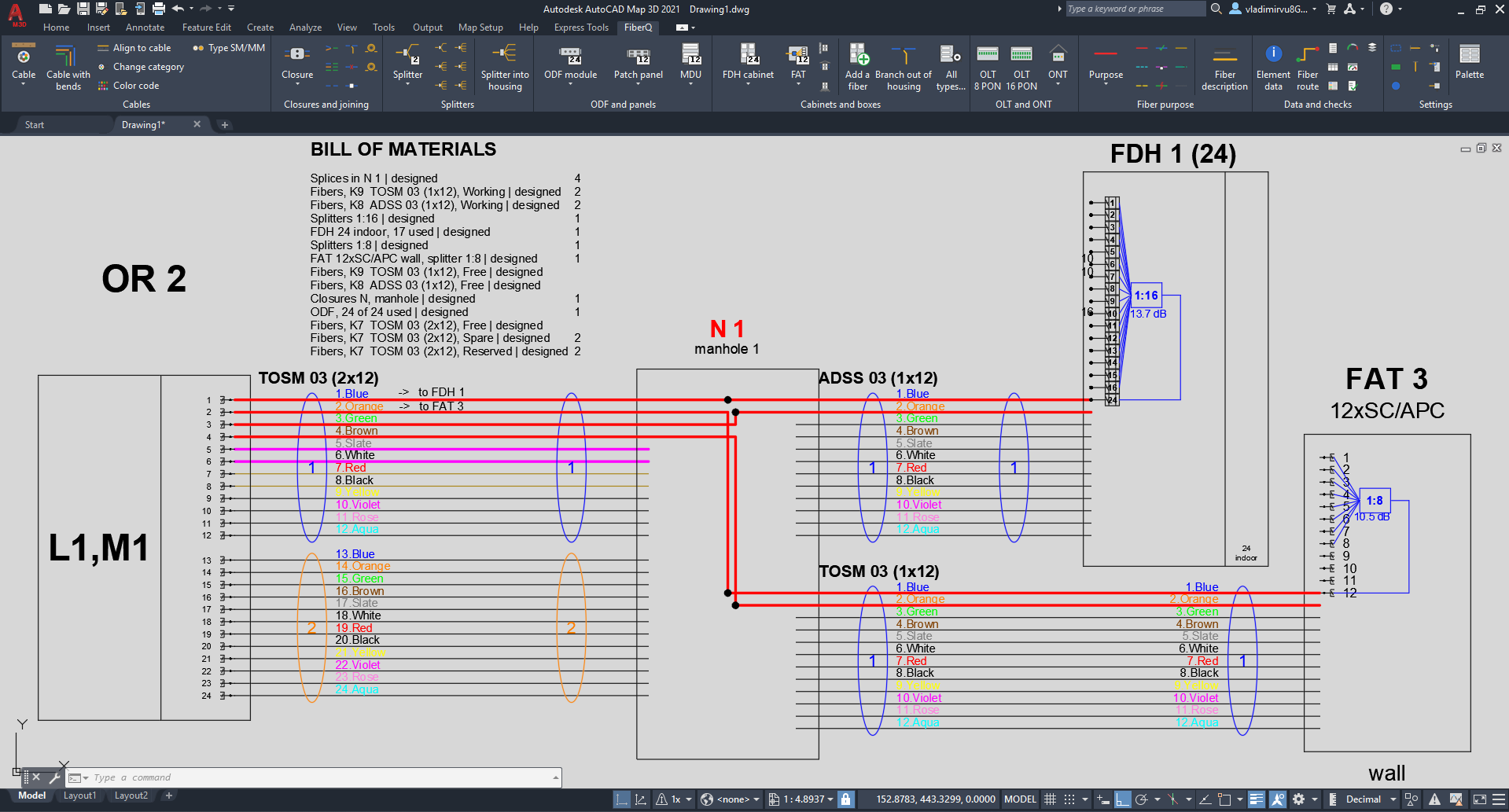
Bill of materials
Generated from the drawing itself, to the command line or as a table inside the drawing.
Optical budget
Along any route, counting every splice, connector and splitter on the way.
Two languages
English and Serbian, switched with one command at any time.
Press F1 on any FiberQ command to open its section of the user guide. The full guide ships with the add-in, in both languages.
03
IN USE
What it looks like
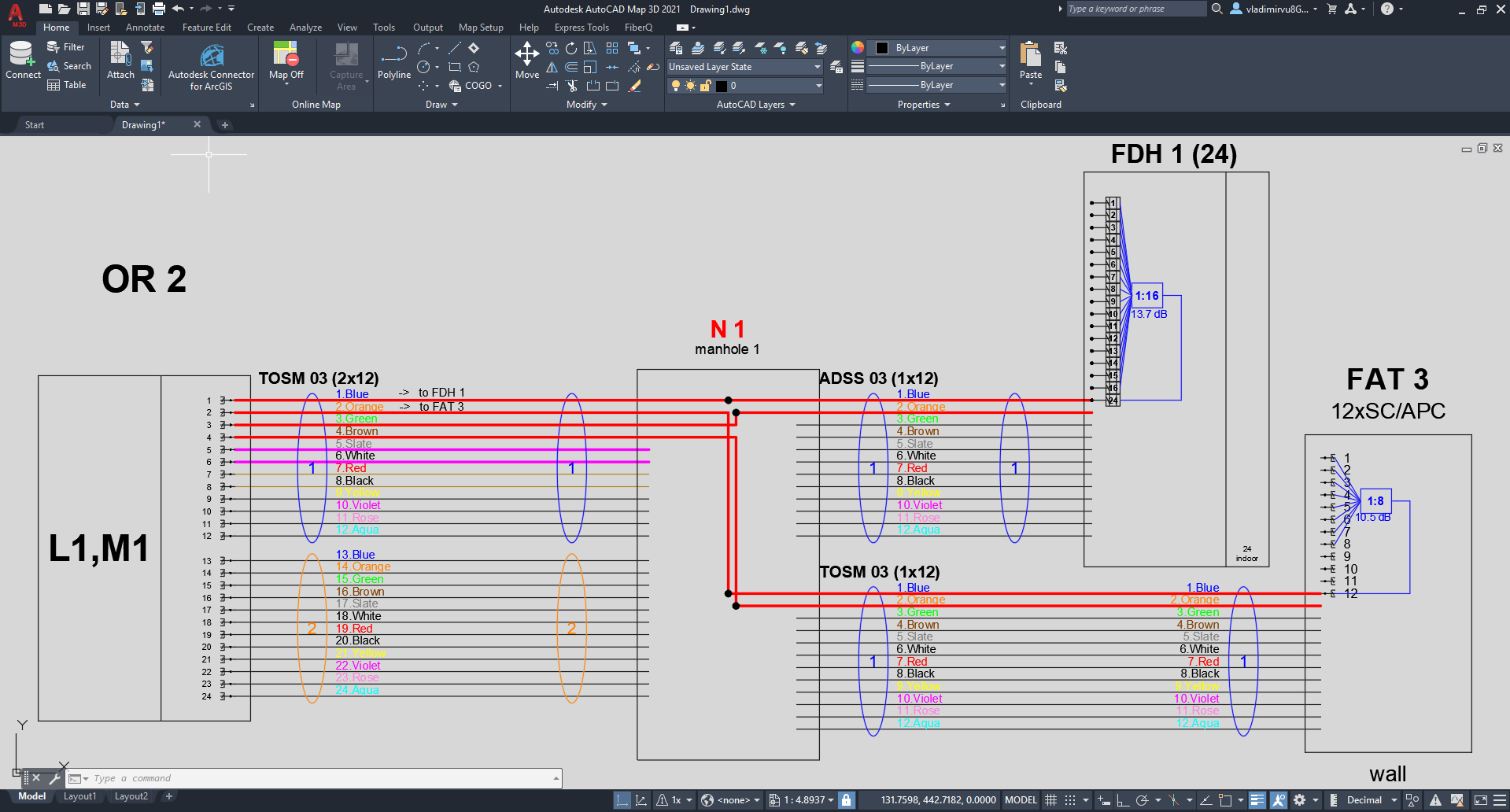
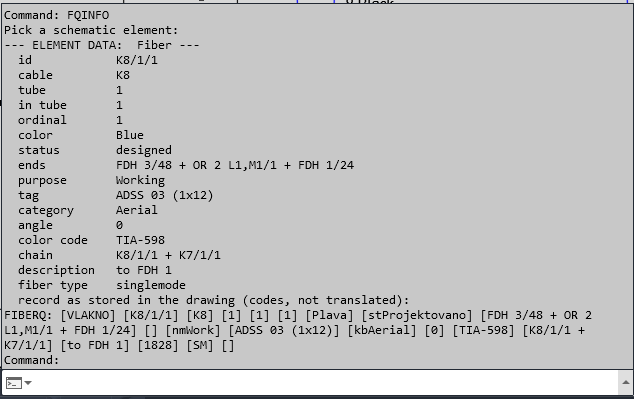
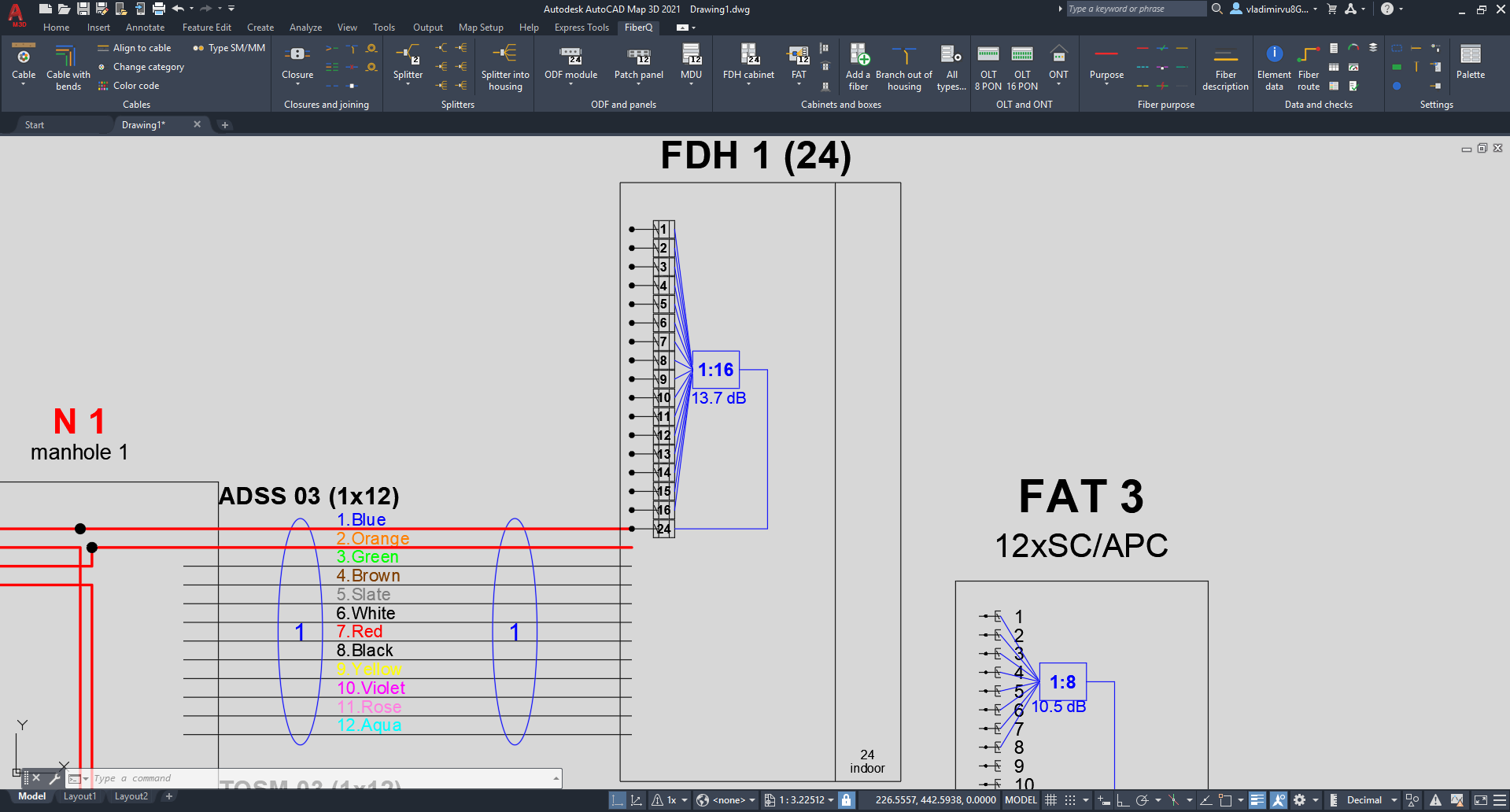
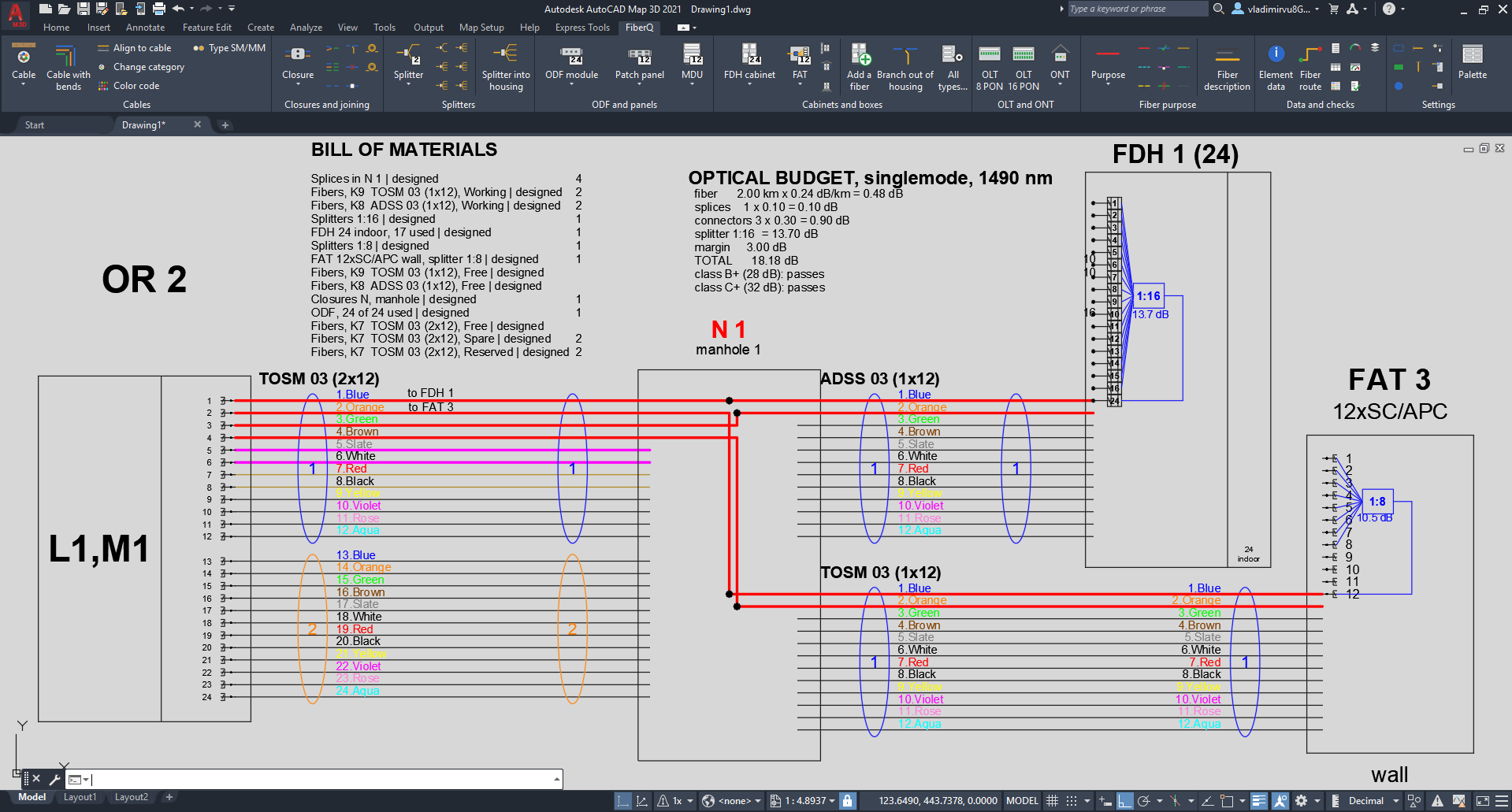
A demo project drawn from an empty file.
04
DOCUMENTATION
The manual, before you download
Every command is documented, with the reasoning behind it. Read it first and decide whether the add-in is worth your time. The same guide ships inside the download and opens on F1.
05
INSTALLING
There is no installer. You copy one folder.
01
Download the ZIP
Right-click it, choose Properties, tick Unblock, then OK. Windows marks everything downloaded from the internet, and AutoCAD refuses to load marked files.
02
Extract it
You get a single folder named FiberQ.bundle.
03
Copy the folder
Into C:\Program Files\Autodesk\ApplicationPlugins\. Windows asks for administrator confirmation once. Accept it.
04
Start AutoCAD
A FiberQ tab appears on the ribbon.
That folder, and no other. AutoCAD trusts Program Files\Autodesk\ApplicationPlugins automatically, because only an administrator can write to it. Put the bundle under your own user profile instead and AutoCAD will question it with a security warning at every start.
06
FINE PRINT
Requirements, uninstalling, privacy
| REQUIREMENTS | AutoCAD 2019 or newer on Windows 64-bit, including AutoCAD-based verticals such as Map 3D and Civil 3D. Nothing else to install: no .NET assembly, no runtime, no account. |
| UNINSTALLING | Delete the FiberQ.bundle folder. That is all of it. Your drawings keep every element that was drawn, and your catalogues stay in your Autodesk profile in case you come back. |
| PRIVACY | FiberQ CAD makes no network connections of any kind and collects nothing at all. The full statement is on the privacy page. |
07
LICENCE
Nothing is hidden
FiberQ CAD is released under the MIT licence and is written entirely in AutoLISP. There is no compiled binary. The source is the product, it installs together with the add-in, and you can read every line of it before you run it.
Found a bug, or want a housing type added to the catalogue? Write, every report is read. vukovicvl@fiberq.net