

Documentation
Everything you need to design, validate, and export fiber networks with FiberQ inside QGIS — from first install to final deliverables.
- Fiber Q – User Guide (For New Users)
- FiberQ – GPON FTTH (End to End Workflow Guide)
- FiberQ – User_Guide (Placing Manholes)
- Download Key & MapProxy folder (Preview Map)
- FiberQ – Setup Database for Preview Map (pgAdmin4 User Guide)
- FiberQ – Manhole UI form
YouTube Tutorials
Click the button below to visit the FiberQ YouTube channel and watch all tutorials related to the FiberQ QGIS plugin (setup, workflows, and step-by-step guides).
Other downloads
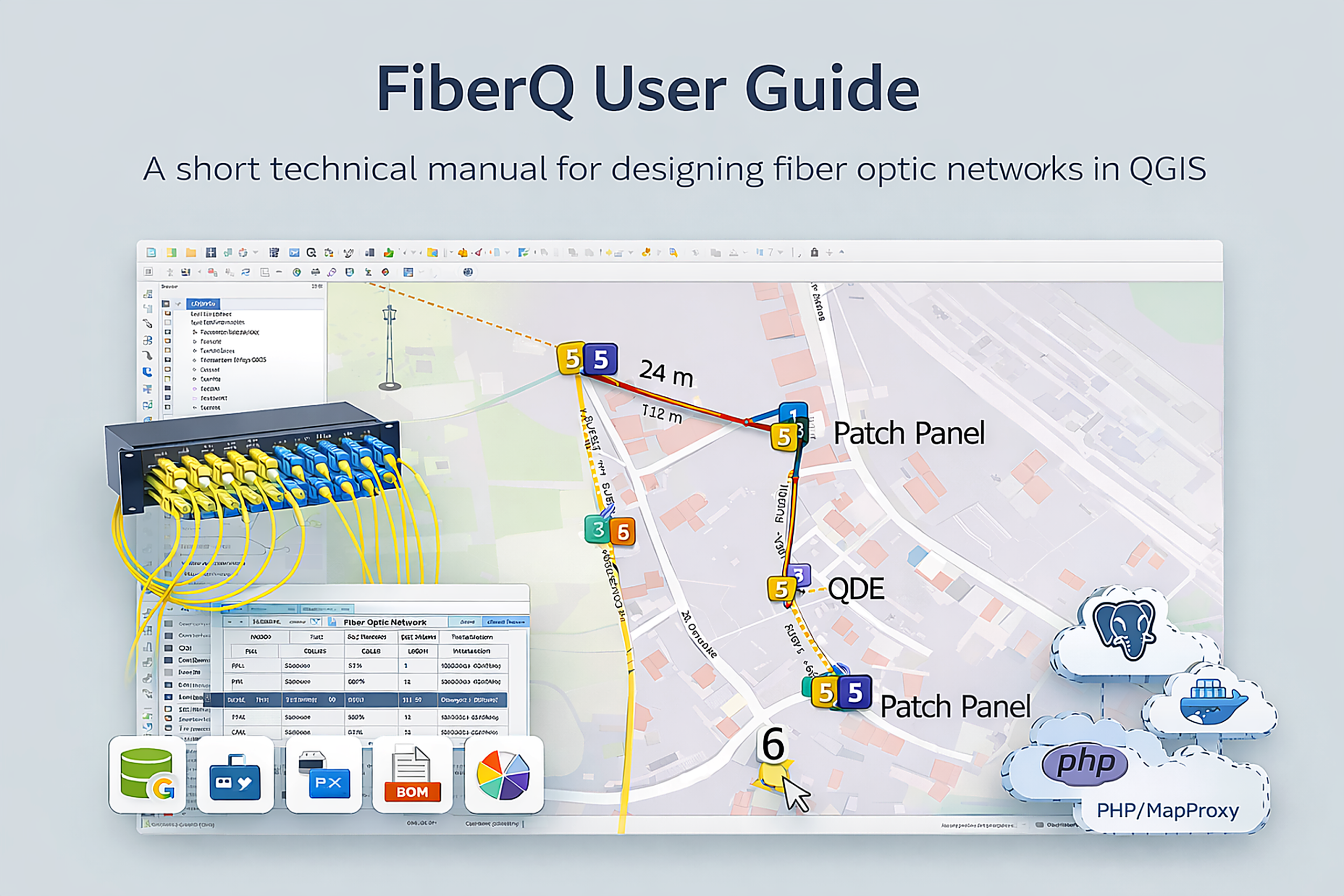
Quickstart workflow
A simple end-to-end workflow you can follow in QGIS.
1) Create a project
Create a project using GeoPackage or PostGIS as your main data store.
2) Draw & place elements
Digitize routes and place poles, manholes, ducts, closures, cabinets, and other objects.
3) Generate network outputs
Generate cables, reserves, splices, and connections based on your design.
4) Validate & review
Validate the design and review results in the map and optical schematic.
5) Export / publish deliverables
Export layers (GeoPackage, KML/KMZ) or publish results to PostGIS.
Import points & lines
Bring existing GIS data into FiberQ layers (points and linework) to avoid redrawing.
Core topics
The main guides users look for — install plugin and setup Preview Map
Installation & setup
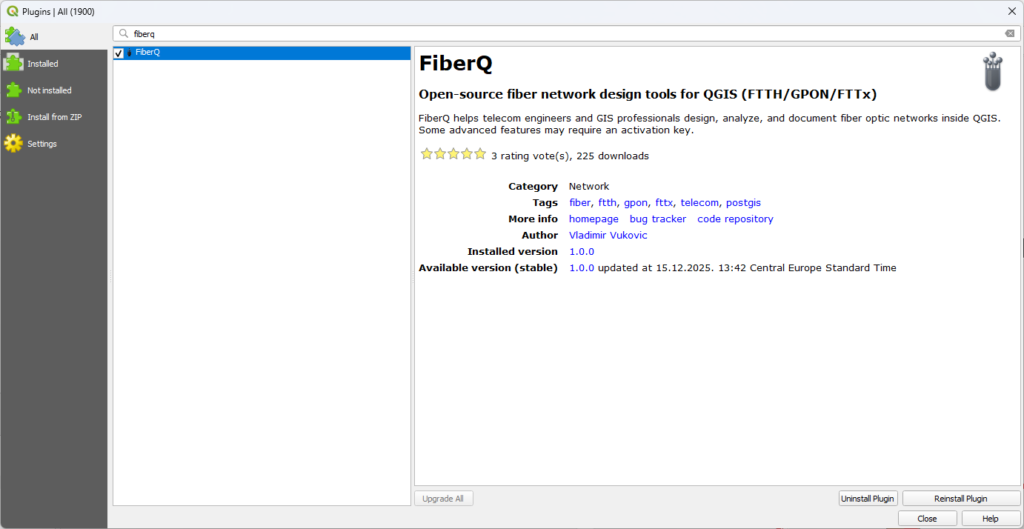
- Install in QGIS → Plugins → Manage and Install Plugins
- Search: FiberQ → Install → Open FiberQ toolbar
- Verify styles/icons and default layer setup
Setup Preview Map
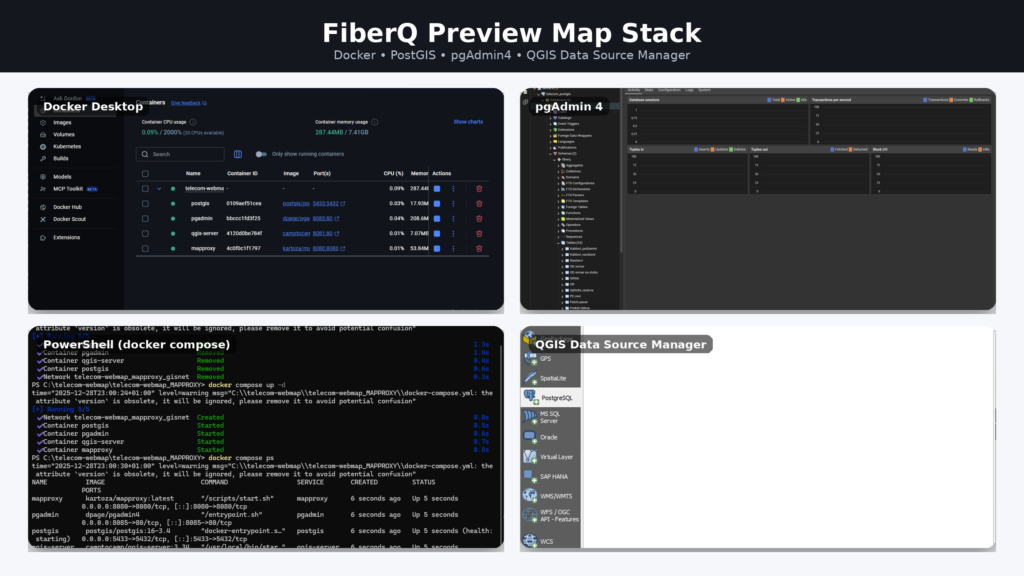
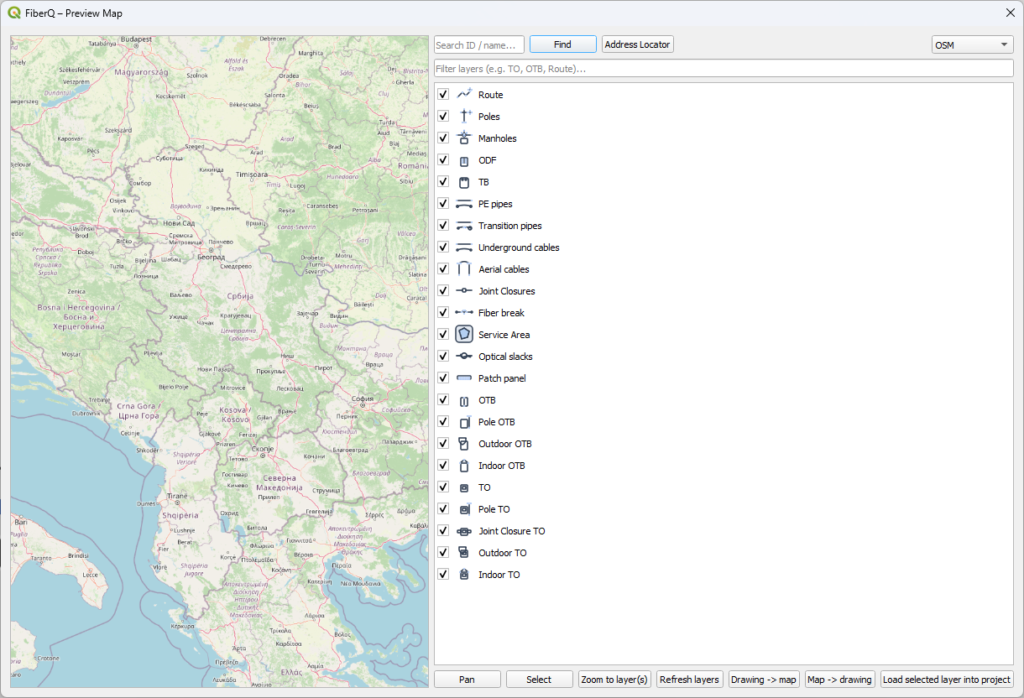
You can deploy the FiberQ Preview Map stack on a single server and provide users with a PostGIS username/password. This enables multiple people to access the same up-to-date map in the browser, and—depending on the permissions you assign—add, edit, or delete elements in the shared database so everyone works from one consistent dataset.
- Activate Preview Map with key
- Download Mapproxy folder
- Download Docker + setup with Powershell
- Connect PostGIS with pgAdmin4
- Export built in layers in Preview Map to main project
- Add or remove elements from Preview Map layers in working project
- Automaticaly added or removed elements to Preview Map
Step-by-step workflows, screenshots, and best practices — from first project setup to export & publishing.

FiberQ docs
Notes & tips
Troubleshooting with Preview Map
- Styles/icons missing after export from Preview Map: reload styles and ensure the plugin SVG path is available in QGIS.
- Layers not visible in Preview Map: verify the project source (GPKG/PostGIS) and refresh the map.
- PostGIS publish doesn’t show updates: confirm table name, SRID, and permissions match your database.
- Slow performance: reduce snapping complexity and avoid overly heavy background layers while editing.
Support & community
FiberQ is community-driven. Bugs, ideas and PRs welcome.